Cross-platform proxy client with rule-based routing. Find answers about access, setup, and rule-based routing; iPhone / iPad: $2.99 one-time purchase on the App Store; Mac, Windows, Android, and Linux versions are free.
Check the configuration before diagnosing the connection
Shadowrocket's connection toggle, server details, and routing rules are separate settings. Checking them one at a time makes it easier to identify the cause than changing several at once.
Before you begin
Have a subscription or server details ready
First, prepare a subscription link you already have or server parameters from your own service provider. The client reads this information to establish a connection; installing the app does not create a usable server. For manual setup, check Type, Host, Port, and the relevant authentication fields individually. Do not use a website login password as connection credentials.
A subscription may contain multiple entries, but seeing them in the list only confirms that import is complete. Whether they connect depends on service status, protocol parameters, and the current network. During troubleshooting, keep one entry and one network fixed, note what happens, and then change one condition at a time.
Suggested order
Get → Import → Route → Verify
For your first setup, open the download page, choose your device, and follow the getting started guide to import details and authorize the VPN configuration. If you can already connect, go straight to the Global Routing and Config guides to see why a request uses PROXY, DIRECT, or REJECT.
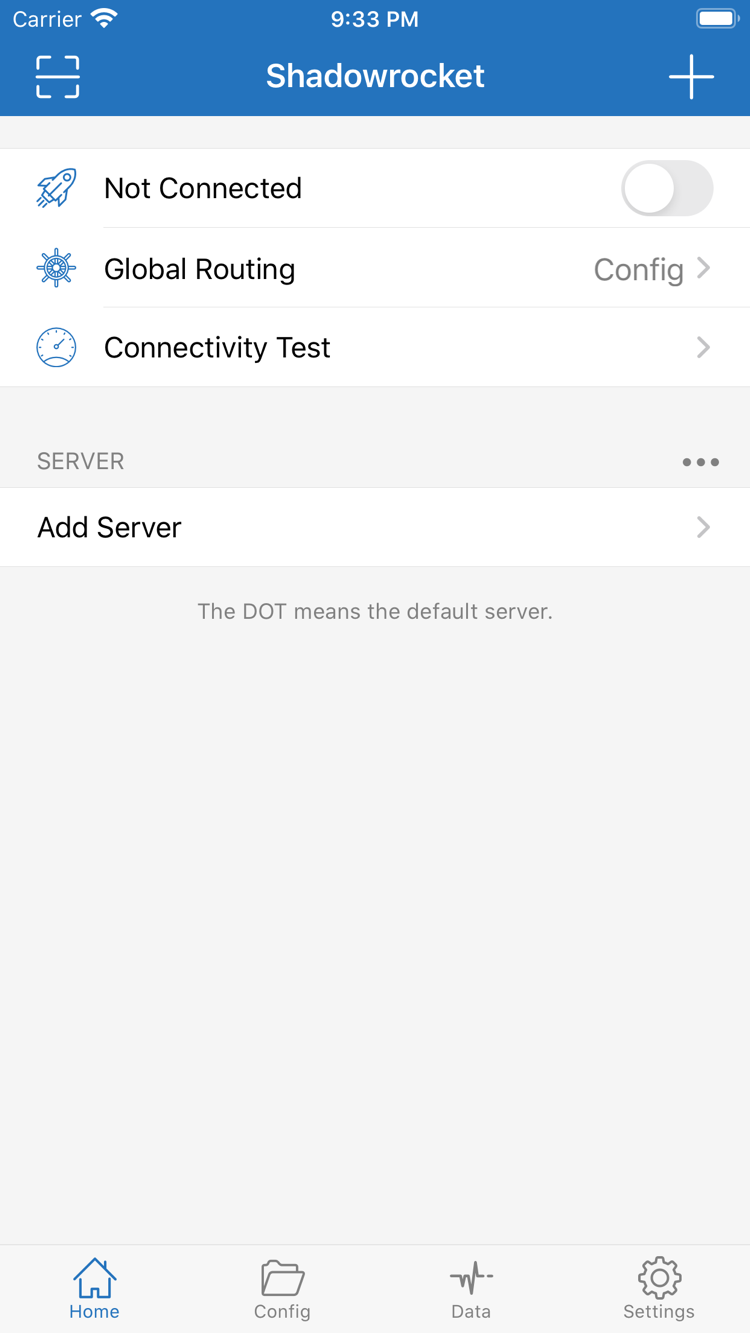
The official Home screenshot above shows where to find the connection toggle, Global Routing, and Add Server. It does not show your device's current connection status. Check actual rules against your own configuration, paying particular attention to whether an earlier broad rule overrides a later, more specific condition.
Q02
Shadowrocket setup questions
Start with a specific question and go to the relevant setting. Interface terms below refer to iPhone / iPad; on other platforms, refer to the labels shown in the app.
The first matching rule determines the policy
When Global Routing is set to Config, requests are routed according to the rules in the active configuration. Open Config to confirm which file is in use, then check the order of the rules. Specific domain conditions generally go before broad conditions, with FINAL at the end for requests that do not match earlier rules. PROXY uses the proxy policy, DIRECT connects directly, and REJECT denies the request. Global Routing options Proxy and Direct switch the overall handling mode; they are not the same as matching individual rules in a configuration.
Show troubleshooting steps
Note the current file and Global Routing option, test one target request, and check which policy matched. Change only the relevant rule order. Avoid changing the server and configuration at the same time, so you can tell which change made a difference.
On Demand triggers a connection when configured conditions are met; it does not fix server parameters. Find On Demand in Settings and configure the conditions shown in the app. First verify that a manual connection and access work, then enable On Demand. If manual connection fails, check the same parameters after automatic triggering. When checking a disconnected state, also check whether On Demand is still active, so an automatically re-established connection is not mistaken for a failed toggle.
Show troubleshooting steps
Turn off On Demand temporarily and test manually. Confirm the selected server and rules work, then restore the conditions you need. Check actual behavior after changing networks; a successful trigger does not by itself confirm that the target request was successful.
Settings
On Demand
Home
Choose Type based on your existing service details
Shadowrocket supports protocols including Shadowsocks, VMess, VLESS, Trojan, Hysteria2, WireGuard, and Snell. To add a server manually, choose the same Type as the server in Add Server, then enter the required fields. Sharing a protocol name does not mean all parameters are interchangeable; check the transport method, authentication details, and TLS settings individually. For an existing subscription, import the original details rather than changing Type to try another protocol. A connection depends on the client and server parameters matching.
Show troubleshooting steps
Compare the fields provided by your service provider with Add Server. A QR code is only a way to transfer parameters. After using Scan QR Code, check the imported details, especially Host and authentication fields, for missing information.
Add Server / Type
Shadowsocks / VMess / VLESS
Trojan / Hysteria2 / WireGuard
HTTP / SOCKS5
Import your own Subscribe details
Get subscription links from your own service provider, then check the SERVER list after importing. Choose Subscribe from the add menu, enter an existing link, save it, and update. If import fails, make sure you copied the subscription URL, not an account webpage. Then check that the URL is complete, the service is active, and the current network can access the update address. Updating a subscription and updating Config are separate operations: the first manages server entries, while the second manages request routing rules. Completing one does not confirm the other is correct.
Show troubleshooting steps
Check for extra spaces or line breaks at either end of the copied text. If the update shows an error, note its type for troubleshooting, but do not expose the full subscription link in public screenshots or help requests.
Config lets you view, edit, and select configuration files. After saving a file, confirm that it is selected. Start editing rules from Rule and Add Rule, and identify the rule type, match criteria, and policy first. Keep the original file before making changes. Afterward, check that Global Routing is set to Config; otherwise, rule changes may not affect requests as expected. With iCloud sync, also check the file and selection on each device. A synced file does not mean server parameters, connection status, or other device settings are also in sync.
Show troubleshooting steps
Keep a working copy of the original configuration and change only what is needed. To restore it, select the original file again and confirm the mode. Do not rely on the filename alone to determine which content is active.
Config
General / Rule / Hosts
Add Rule
URL Rewrite / HTTPS Decryption
Separate connection tests from access results
Use Connectivity Test to check the selected entry, then use actual requests and Diagnostics to locate a failure. Test results depend on Test Method and the current network; one test cannot confirm that all websites or protocols will work. If the connection toggle is on but a target will not open, continue by checking Global Routing, the matching rule, DNS, and service status. Data can help show traffic changes, but traffic alone does not confirm access to a specific target. Verify using the result of an actual target request.
Show troubleshooting steps
Keep the server and configuration fixed, then test on the current network and another available network. Note whether the failure occurs during subscription update, VPN setup, or target access, and follow the relevant steps instead of repeatedly deleting the entire configuration.
Connectivity Test
Settings / Test Method
Diagnostics
Data
Q03
Choose how to get Shadowrocket for your device
Two ways to get it: iPhone / iPad: $2.99 one-time purchase on the App Store; Mac, Windows, Android, and Linux versions are free, with installers available on this site's download page.
Desktop and Android installers are available from this site's /dl/shadowrocket/ directory. To update, return to the download page for the current package; iPhone / iPad updates are handled through the App Store. Installation permissions and VPN connection permissions are separate steps. After installation, follow the getting started instructions to confirm VPN authorization.
The preview below uses iPhone / iPad as an example. First connect manually, then consider automatic triggers, sync, or more advanced rule changes.
STEP 01 · Add Server
Add an existing server or subscription
Enter existing details from the add menu in Home. For a single server, fill in the fields according to Type. For an existing subscription, import it using Subscribe and update it. After saving, return to SERVER to check the entry and select the server you want to test. An import completing does not mean the connection has succeeded.
If using a QR code, first confirm the details came from your own service provider, then scan with Scan QR Code. Check the fields after import, and do not show subscription URLs or authentication details in public images.
STEP 02 · Global Routing
Check how requests are handled
To route requests by rules, select Config and confirm the active configuration file in Config. Proxy and Direct set the overall handling mode and are useful for troubleshooting once you understand their purpose. Do not keep switching modes whenever a target fails while overlooking the specific rules.
Keep the configuration simple for your first test. Confirm that the selected server can connect, then check the routing result. If you also import a complex configuration, change servers, and adjust DNS, it will be difficult to identify the cause of a problem.
STEP 03 · Connectivity Test
Turn on the connection and verify access
When establishing your first connection, allow the VPN configuration when prompted by the system. After authorization, return to Home, check the connection status, run Connectivity Test, and visit the target you need to verify that actual requests behave as expected.
An active connection toggle does not mean every request uses the proxy. If the result is unexpected, first check Global Routing and the rule policy, then check service status. Recording the specific failure stage helps more than repeatedly reinstalling the app.
How to verify the app, purchase, and restore access
Shadowrocket is a closed-source commercial app. Check App Store product details for iPhone / iPad; get installers for other platforms from this site's download page.
Developer Shadow Launch Technology Limited
App ID 932747118
iPhone / iPad $2.99 one-time · Free on other platforms
Check the developer, icon, and app ID
On the App Store product page, confirm the name is Shadowrocket and the developer is Shadow Launch Technology Limited, then check that the link contains app ID 932747118. Compare the official icon with the one in this site's header. Do not rely only on a name or similar-looking graphic in search results; all three details should refer to the same product.
This is the official Shadowrocket website and manual. The access guide explains store visibility, purchase, and restore in separate sections. Desktop and Android users should visit this site's download page and choose an installer for their device; the iPhone / iPad App Store purchase process does not apply to them.
If it does not appear in search, check the store region
The App Store shows apps based on the country or region associated with an account. Shadowrocket is currently unavailable to search for or get from the China mainland storefront. Device language, system region, and account storefront are separate settings; changing the device language alone does not change the account's store catalog.
First check the account shown under “Media & Purchases” in account settings, then check its “Country/Region.” Whether you can change regions depends on conditions such as account balance, active subscriptions, and payment details. Follow the prompts on your account page. For the exact check order, see the access guide; a missing search result does not by itself mean the device is unsupported.
One-time purchase and restoring on another device
The App Store price for iPhone / iPad is a one-time $2.99 in the US storefront; other storefronts show local currency. Mac, Windows, Android, and Linux versions are free. iPhone and iPad can share a purchase under the same purchasing account. When changing devices or reinstalling, first look in App Store purchased items and then check device compatibility.
If the page shows a purchase price again, first check whether the account under “Media & Purchases” matches the original purchasing account instead of paying again. Check the product page and Family Sharing settings for eligibility and member access. See the App Store page for system requirements.
Update the app and subscription separately
App Store provides app updates for iPhone / iPad. Mac, Windows, Android, and Linux users can return to this site's download page for the current installer. An app update changes the client itself; a Subscribe update changes the existing server list; a Config update may change routing rules. Each operation affects a different item.
Keep any configuration notes you need before updating. If a problem occurs, first identify which part was just updated, then compare the connection before and after. Do not attribute a failed server directly to an app update, and do not use subscription reimport as a substitute for checking the active configuration and Global Routing.
Why can't I connect after a successful subscription update?
A successful subscription update only confirms that the list was retrieved; it does not mean every server in it is available. Check the selected entry in SERVER, run Connectivity Test, and check service status, authentication parameters, and the current network. If the entry connects but the target cannot be accessed, check Global Routing and which rule matched.
Which Global Routing option should I choose: Config, Proxy, or Direct?
Choose Config to route according to configuration rules. Proxy and Direct set overall proxy and direct-connection modes, respectively. Choose based on what you are testing, and resend the target request after switching. In Config mode, a DIRECT result does not mean the client has failed; the request may have matched a rule that correctly uses a direct connection.
What if the connection turns on and then connects or disconnects automatically?
First check the On Demand conditions and system VPN status. On Demand may establish a connection again when its conditions are met; an unavailable server or network change may also affect the connection. Temporarily disable On Demand and test manually to distinguish an automatic trigger issue from a server connection issue.
Confirm that the file you edited is the selected Config and that Global Routing is set to Config. Then check from the top of the rules list to see whether an earlier condition already matches. After saving, send the request again rather than judging the new rule by an existing connection. If needed, restore the original file for comparison.
For questions beyond the basic workflow, explore a topic-specific guide. These three articles cover Linux installation, REJECT rules, and the first connection screen.
The Linux version is free. Choose a package format for your distribution and learn how to install with apt or dnf, or grant execution permission to AppImage. Check the download location and filename before proceeding. If there are dependency issues, keep the package manager's message and avoid mixing installation methods from different distributions.
REJECT denies requests that match a rule. This guide explains how DOMAIN-SUFFIX, DOMAIN-KEYWORD, and policies work together, and why rule position changes the result. Rule matching applies to request conditions; it should not be understood as arbitrary modification of page content.
Starting with the Not Connected toggle, learn the roles of Global Routing, Connectivity Test, and the SERVER list. Follow the first-connection sequence to check authorization, the selected entry, and test results, and learn what to verify after each step.